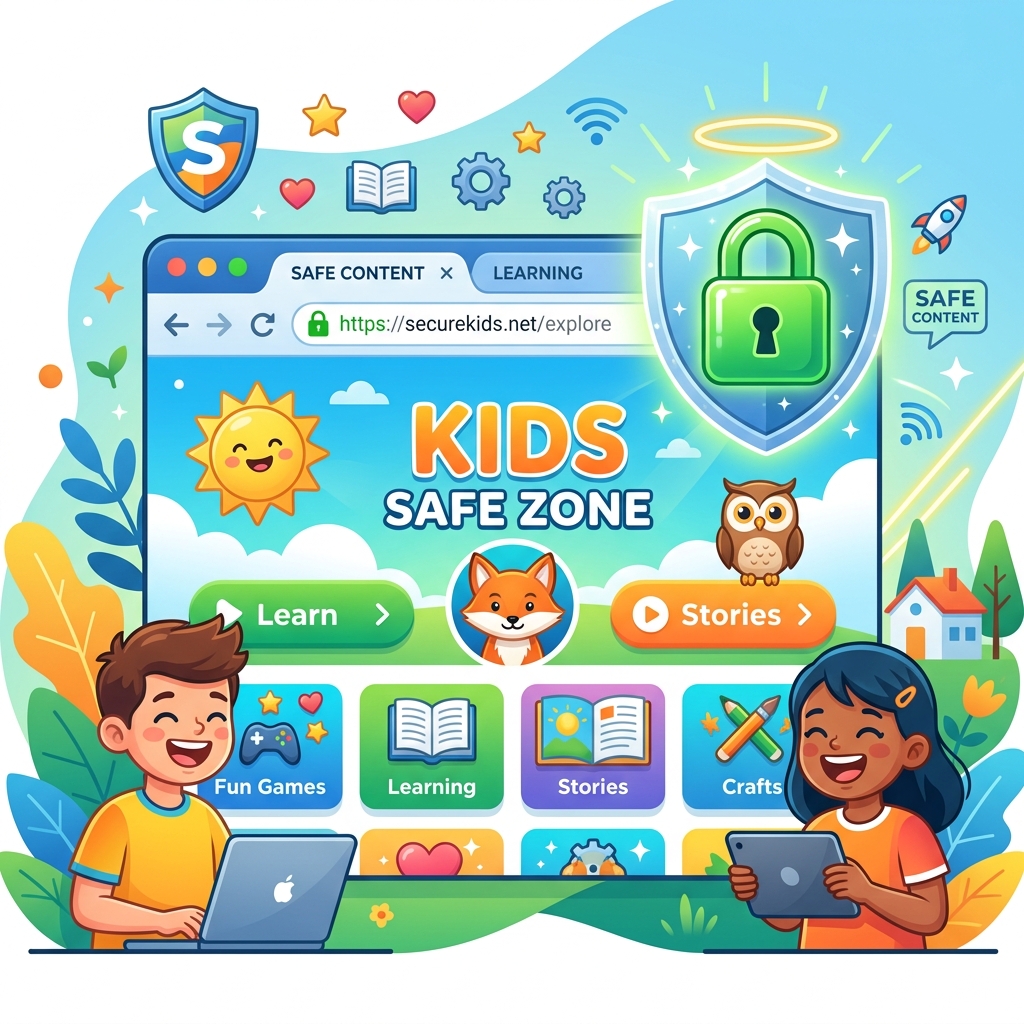
Secure browsing for kids is the practice of utilizing specialized web browsers, strict privacy settings, and active filtering to protect children from inappropriate content, malicious downloads, and aggressive data tracking while they explore the internet. The default browsers on smartphones and computers (like Chrome or Safari) are designed for adults and prioritize data collection over privacy, making them unsuitable for unsupervised minors.
A child’s curiosity can quickly lead them from an educational video to unsafe territory. Whether it’s clicking a deceptive ad that downloads malware or stumbling upon explicit content, the web is rife with hazards. Implementing secure browsing protocols acts as a digital safety net, allowing children to learn and play while blocking out the internet’s darker corners.
In this guide, we will explore the mechanics of safe browsing, compare the best kid-friendly browser options, and provide a checklist for locking down the default browsers on your family’s devices.
- Default web browsers track extensive amounts of data and lack built-in content filters for children.
- Secure browsing for kids requires a combination of safe search enforcement and ad-blocking technology.
- Incognito mode does not protect children from tracking by ISPs or inappropriate content.
- Switching to a privacy-first browser is a foundational step in child digital footprint management.
The Hazards of Unrestricted Browsing
Allowing a child to use an unrestricted browser is akin to letting them wander a massive city without supervision. The risks fall into three primary categories.
1. Inappropriate Content
Search engines index billions of pages, including adult content, violence, and hate speech. A simple typo in a search query can yield disastrous results. Enforcing “SafeSearch” on Google and Bing is critical, but determined children can often bypass these settings if the browser itself is not locked down.
2. Malvertising and Phishing
Children are highly susceptible to “malvertising”—malicious advertisements disguised as games or “free prizes.” Clicking these ads can download ransomware or direct the child to a phishing site designed to steal passwords. Utilizing family internet security solutions with built-in ad blockers is essential.
3. Invisible Data Tracking
Mainstream browsers track user behavior using cookies and fingerprinting scripts. This data is used to build detailed profiles for targeted advertising. Protecting your child from this surveillance is the core of digital privacy for children.
Choosing the Right Browser for Your Child
Parents should replace default browsers with options specifically designed for privacy and safety. The choice depends on the child’s age.
| Browser Option | Target Age Group | Best Feature |
|---|---|---|
| Pikluk / Kiddle | Ages 4 – 8 | A completely “walled garden” approach. Only allows access to pre-approved, child-safe websites. |
| Brave Browser | Ages 9 – 14 | Blocks all third-party trackers and ads natively. Can be paired with strong DNS filtering. |
| DuckDuckGo | Ages 15+ | Does not track search history or build advertising profiles. Great for privacy-conscious teens. |
Actionable Steps to Secure Any Browser
If you must use a mainstream browser like Chrome or Safari, follow these steps immediately to harden its security.
Step 1: Enforce SafeSearch at the Network Level
Instead of relying on browser settings that a child can change, configure your home Wi-Fi router to use a family-safe DNS (like OpenDNS Family Shield). This forces SafeSearch on all devices connected to the network, regardless of which browser they use.
Step 2: Install Privacy Extensions
Install high-quality extensions on your child’s browser. uBlock Origin is excellent for blocking malicious ads and trackers, while Privacy Badger prevents companies from following your child’s digital footprint across the web.
Step 3: Disable Autocomplete and Password Saving
Do not allow the browser to save passwords or autofill credit card information. Use a dedicated family password manager instead. This prevents a child from accidentally making unauthorized purchases or exposing credentials if the device is compromised.
Conclusion
Secure browsing for kids is not a “set it and forget it” task; it is an active layer of defense. By transitioning away from default browsers to privacy-first alternatives like Brave, enforcing network-level SafeSearch, and installing aggressive ad-blockers, you significantly reduce the risks of the open internet. Start today by installing a tracker-blocking extension on your child’s primary device.
Commercial Buyer’s Guide: Investing in Your Family’s Digital Safety
While education and communication are foundational, they are not enough to stop automated cyber attacks and synthetic identity fraud. To truly secure your household, you must invest in enterprise-grade cybersecurity. When you are ready to purchase secure browsing for kids tools, you need to look beyond free, basic tools and evaluate premium, comprehensive platforms.
Why Free Tools Fail
Free security tools often lack the critical features necessary for modern defense, such as continuous dark web scanning, real-time ransomware protection, and dedicated resolution specialists. Furthermore, free apps frequently monetize your usage by harvesting and selling your family’s data—the exact opposite of what a privacy tool should do.
Top Recommendations for 2026
Based on our extensive testing and independent security audits, here are the top-rated suites on the market:
| Software Suite | Primary Strength | Average Annual Price |
|---|---|---|
| Aura Family Plan | Unmatched all-in-one protection combining antivirus, VPN, parental controls, and identity theft insurance. | $144/year |
| Norton 360 Deluxe with LifeLock | The industry standard for rapid threat detection and million-dollar stolen funds reimbursement. | $180/year |
| Bark Premium | The absolute best AI-driven social media monitoring for detecting cyberbullying and predatory behavior. | $99/year |
When you evaluate the cost of top identity theft protection or premium parental controls, remember that you are purchasing peace of mind. The financial and emotional toll of a compromised identity or a cyberbullying incident far outweighs the annual subscription fee of a premium security suite.
Author Bio: Russell F. Jones holds a Master in Psychology from the University of Florida. He specializes in digital parenting, providing technical solutions to help families navigate internet safety and cybersecurity.
Last Updated: June 2026
Frequently Asked Questions
What is secure browsing for kids?
Secure browsing for kids involves using specialized browsers, privacy extensions, and network filters to block inappropriate content, malicious advertisements, and invisible data trackers while a child uses the internet.
Is Google Chrome safe for my child to use?
By default, Google Chrome prioritizes data collection and does not block trackers or ads natively. It requires significant configuration (extensions and SafeSearch locks) to be considered safe for unsupervised minors.
What is a “walled garden” browser?
A “walled garden” browser (like Pikluk) operates on a “whitelist” system. It blocks the entire internet by default and only allows the child to visit specific, parent-approved websites.
Does Incognito Mode protect my child’s privacy?
No. Incognito Mode only prevents the browser from saving browsing history locally on the device. It does not stop websites, search engines, or your Internet Service Provider from tracking the activity.
How can I stop inappropriate pop-up ads?
The most effective way to stop inappropriate pop-ups is to install a reputable ad-blocking extension like uBlock Origin or switch to a browser like Brave that blocks ads and trackers natively.
Comprehensive 2026 Buyer’s Guide & Additional Insights: Secure Browsing for Kids: Locking Down Their Digital Window
As the digital landscape evolves, staying informed about secure browsing for kids: locking down their digital window is more critical than ever. Families across the globe are facing unprecedented challenges in managing digital safety, screen time, and psychological well-being. Whether you are dealing with toddlers discovering tablets or teenagers navigating complex social media ecosystems, relying on outdated strategies is no longer sufficient.
Why Premium Solutions Matter
Many parents attempt to solve modern digital problems using free, built-in operating system controls. However, these tools are often inadequate against tech-savvy minors and sophisticated algorithms. When addressing secure browsing for kids: locking down their digital window, investing in enterprise-grade family network security and premium software suites provides a unified, impenetrable defense.
Free tools typically lack deep packet inspection, real-time cyberbullying detection, and comprehensive dark web scanning. Furthermore, some free applications monetize their services by harvesting your family’s behavioral data, directly contradicting your privacy goals.
Top Industry Recommendations
| Recommended Service | Key Benefit | Average Cost |
|---|---|---|
| Aura Family Plan | Unmatched all-in-one protection combining antivirus, VPN, parental controls, and identity theft insurance. | $144/year |
| Norton 360 Deluxe | Industry-standard rapid threat detection and million-dollar stolen funds reimbursement. | $180/year |
| Bark Premium | The absolute best AI-driven social media monitoring for detecting digital threats. | $99/year |
When you evaluate the costs associated with these premium tools, you must factor in the invaluable peace of mind they provide. The financial and emotional toll of a compromised identity or unmonitored digital access far outweighs a nominal annual subscription fee.
Explore More Digital Parenting Resources
For a comprehensive overview of how to protect your family in 2026, be sure to read our Ultimate Guide to Digital Parenting.
Additionally, check out these related guides to further secure your household:
- Family Internet Security Solutions: Securing Your Home Network
- Cyberbullying Monitoring Software: Protecting Your Child from Digital Abuse
- Family Identity Theft Protection: A Unified Defense
Explore More Digital Parenting Resources
For a comprehensive overview of how to protect your family in 2026, be sure to read our Ultimate Guide to Digital Parenting.
Additionally, check out these related guides to further secure your household:
- Identity Protection for Minors: Safeguarding the Future
- Family Identity Protection Services: Guarding Your Digital Life
- Family Internet Security Solutions: Securing Your Home Network
